
BeatOps Release is a VST3/AU plugin on your master bus. Export like you always do, and the beat is catalogued, packaged and one confirm away from YouTube (Shorts), BeatStars and SoundCloud.
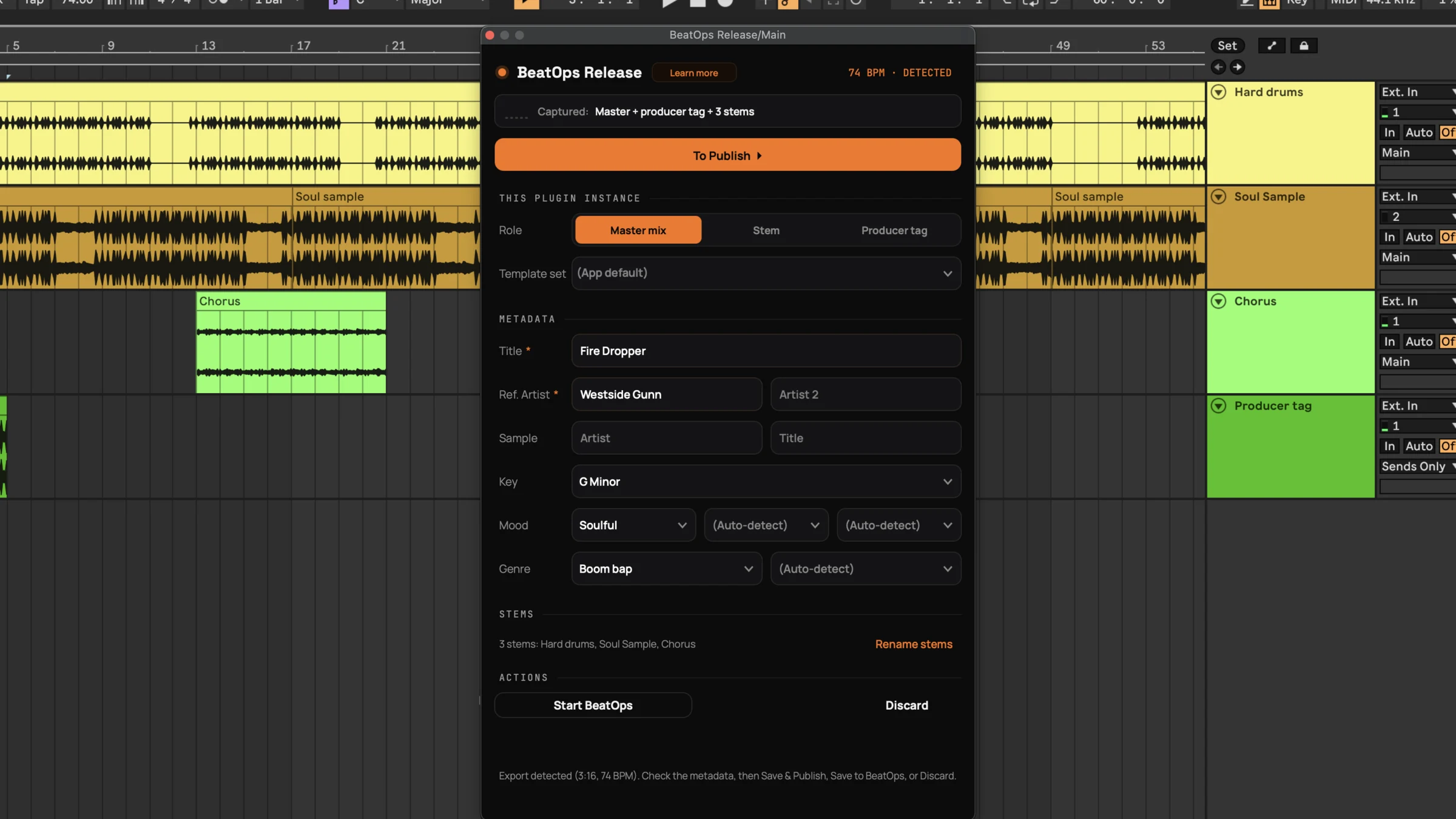
Yes. BeatOps Release is a VST3/AU plugin that sits on your master bus, captures your beat as you bounce, and publishes it to YouTube, YouTube Shorts, BeatStars and SoundCloud. The export is the trigger, so there is no second app to open and no finished file to go hunting for.
It installs from inside the BeatOps app, it is free on every plan, and it is tested in seven DAWs, from FL Studio and Ableton Live to Logic Pro and GarageBand, on both macOS and Windows.
A finished beat is maybe 40 minutes away from being live. None of those minutes are music.
The only new habit is loading the plugin once. After that, your normal export does the work.
Install BeatOps Release from inside the app, then drop one instance on your master bus. Bake it into your DAW template and every new beat is capture-ready with zero setup.
Bounce, render, export WAV, whatever your DAW calls it. The plugin detects the render on its own and shows Export detected, wherever the file ends up.
Once your templates are set, the form fills itself. Title and BPM come straight from your project, key, genre and mood from the audio analysis, and the reference artist, titles, descriptions, tags and videos from your template set. The one thing left is a sample credit, if you used a sample.
Save drops the finished package in your beats folder. Save & Publish also uploads to the platforms you ticked, now or on your scheduled slot, with artwork and video generated for each one.
It is in the session while the beat renders, so it captures things that are gone by the time you have a WAV on disk.
One instance on your stereo out captures a bit-perfect copy of the mix. The WAV your DAW writes is never modified, so the file you hand a buyer is exactly what you bounced.
An instance on any track becomes a stem, printed in the same export as the master. These are your authored busses, not AI-separated guesses. Empty and silent tracks are dropped, so you never ship junk stems.
Captured straight from your tag track, with your own effects on it. It is mixed into the MP3 preview and the Short, never into the clean WAV.
Where you put the Stem instance in a track's FX chain decides what you get. First in the chain for dry stems, last for fully processed ones.
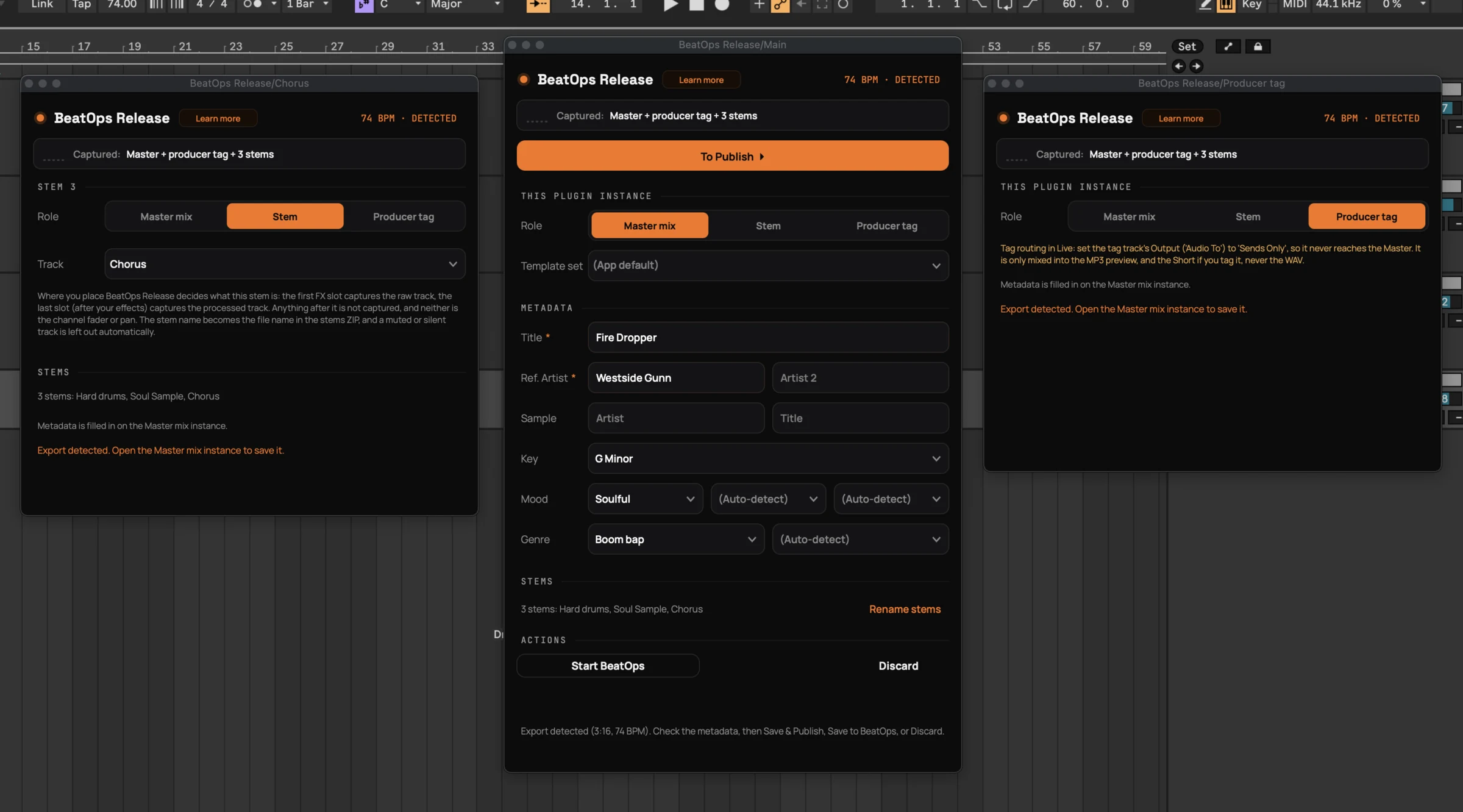
The plugin hands the audio to BeatOps on your own machine, which does the rest without sending your beat anywhere you did not ask it to.
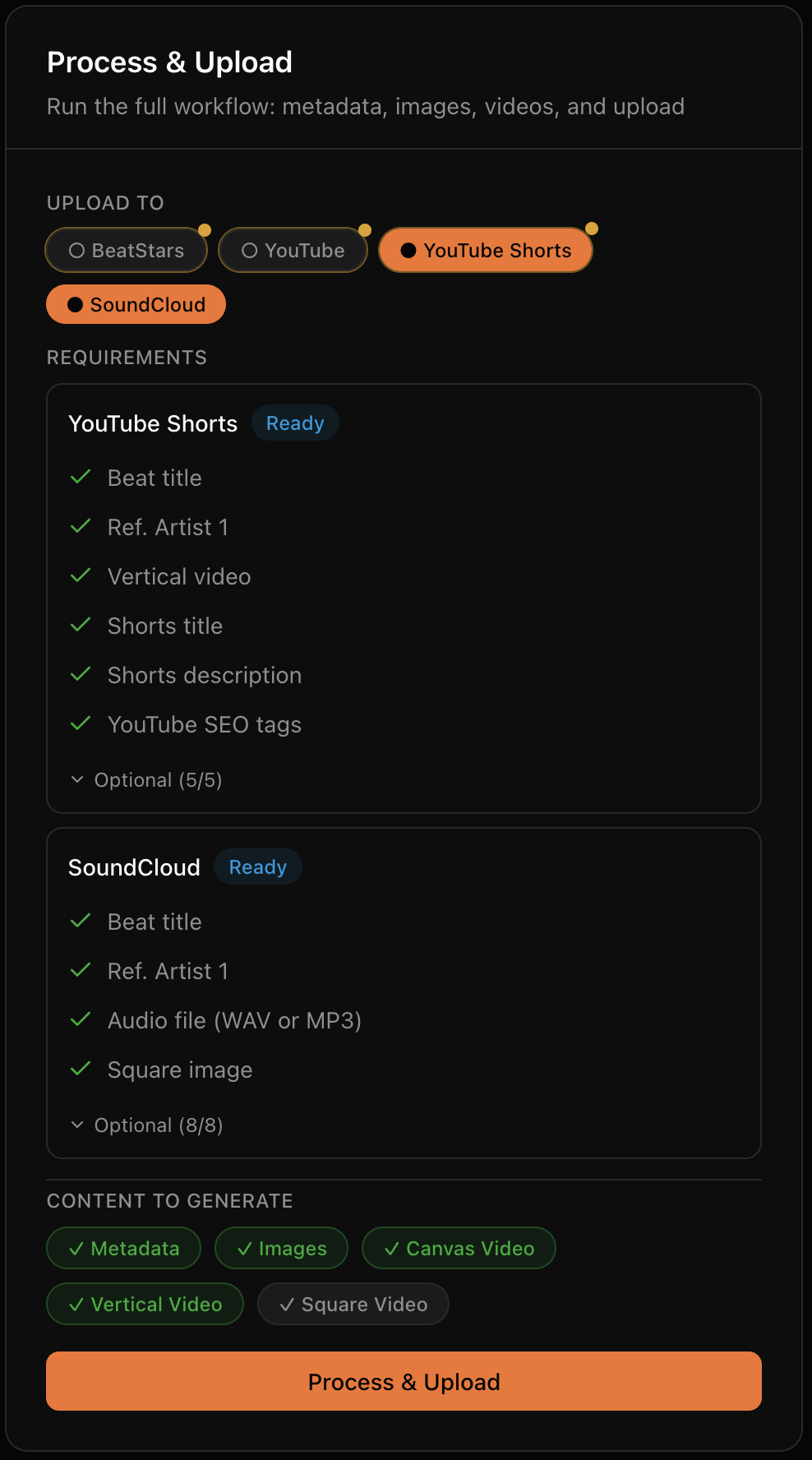
The plugin is one way in. Not every beat starts in a session you still have open. BeatOps runs the same release from the app, and from an AI agent you connect.
See all three ways to publishThese are the DAWs we actually test BeatOps Release against, on macOS and Windows.
Does not work: Pro Tools, which only loads AAX plug-ins, and the MPC desktop software. If you produce in MPC, finish the beat in one of the DAWs above.
Anything else: untested, so we will not claim it. BeatOps Release is a normal VST3 and AU plugin, so it will most likely load and capture there too.
Formats: signed VST3 and AU on macOS, signed VST3 on Windows. You install both from inside the BeatOps app under Settings, DAW Plugin, Install, then restart your DAW so it rescans.
Your plan only sets how many beats you can publish. The free one comes with 10 publishes per platform, and your library, templates and analysis keep working once those run out.
The plugin ships with the BeatOps app and needs version 3.0 or later. No credit card required.
Yes. BeatOps Release loads as a VST3/AU on your master bus and turns your normal export into the upload. The beat is captured while FL Studio renders it, then published to YouTube, YouTube Shorts, BeatStars and SoundCloud. You never leave FL Studio to start the upload.
Yes, with BeatOps Release. Tick BeatStars under Publish to, then bounce your beat. The plugin captures the audio, BeatOps builds the artwork, tagged MP3 and video, and the beat is uploaded. No exporting and re-importing files.
No. The export is the trigger. Bounce exactly as you normally would and the plugin captures the audio as it renders. Where you save that file, or what you name it, does not matter, because BeatOps writes its own files into your beats folder.
FL Studio, Ableton Live, Logic Pro, REAPER, Cubase, Studio One and GarageBand, on macOS and Windows. It does not work in Pro Tools, which only loads AAX plug-ins, or in the MPC desktop software.
Yes. It is included on every plan, the free one too, and it installs from inside the BeatOps app. Your plan only sets how many beats you can publish. See pricing.
No. It captures its own bit-perfect copy of your master, so the file your DAW writes is untouched. Your producer tag is mixed into the MP3 preview only, never into the clean WAV a buyer gets.
Yes. Put an instance on any track you want as a stem and it is printed in the same export as the master. These are your real busses, not AI-separated guesses, and silent or muted tracks are dropped automatically.
Yes. It ships as a signed VST3 on Windows and as VST3 plus AU on macOS, and is tested on both.
Download BeatOps, install the plugin from Settings, and your next export publishes itself.